Web Portal
Quote to Customer module-> allowing foreign currency conversions for end customer quoting
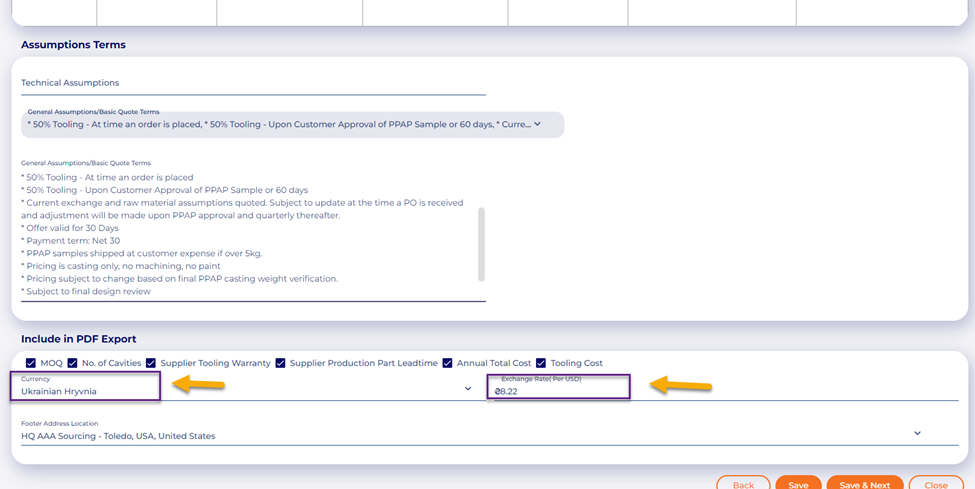
For finished component RFQs, users can create a Quote to Customer based on the prices received back from their suppliers. Previously, Quote to Customer only allowed the user’s default currency to show on the screens in the module. We have expanded that to allow for changing this currency, and adding an exchange rate, so the final quote screen, and export documents render the quote in the desired currency and exchange rate.
Quote to Customer Setup-> Select the currency and add an exchange rate:
 Quote to Customer Setup: Review the final calculated costs, observed in the selected currency and exchange rate:
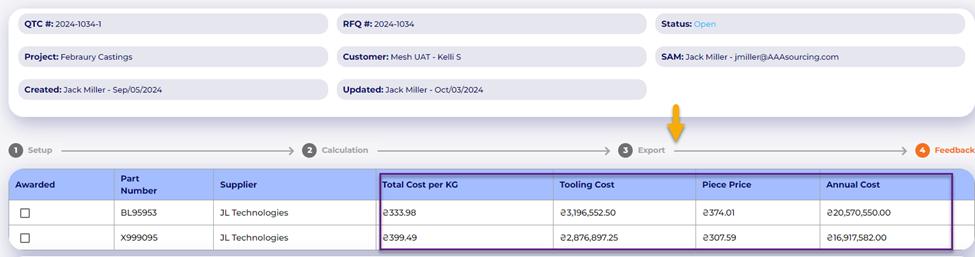 Quote to Customer Export: observe the currency and exchange rate:
 Parts Library integration to RFQ and Project Request
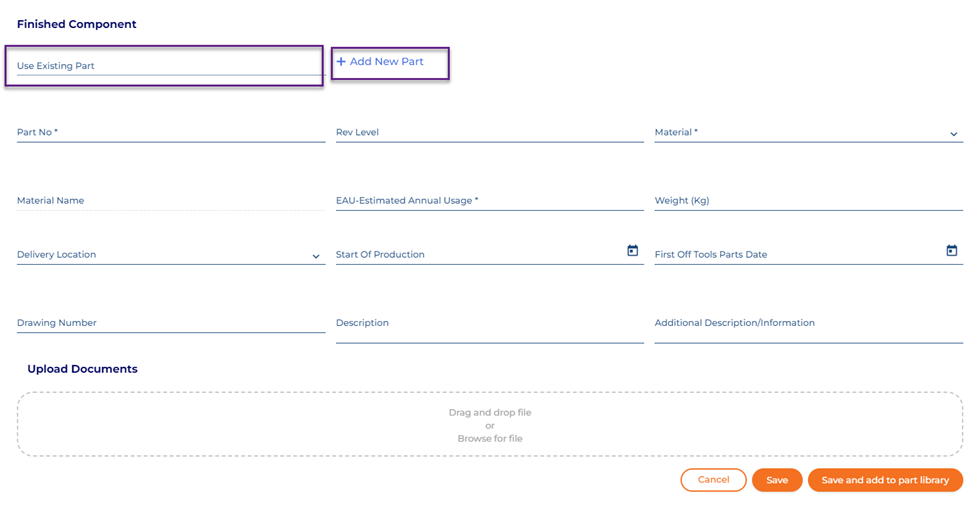
When creating or editing an RFQ, you can now quickly add parts from your library with a single click.
Click on the Use Existing part dropdown and select the desired part to use. Once selected, the part information will populate on the form. Users can still modify the attributes in the RFQ, and it won’t change the part attributes in your library. Secondly, select the link” Add New Part” to add a new part to the library.
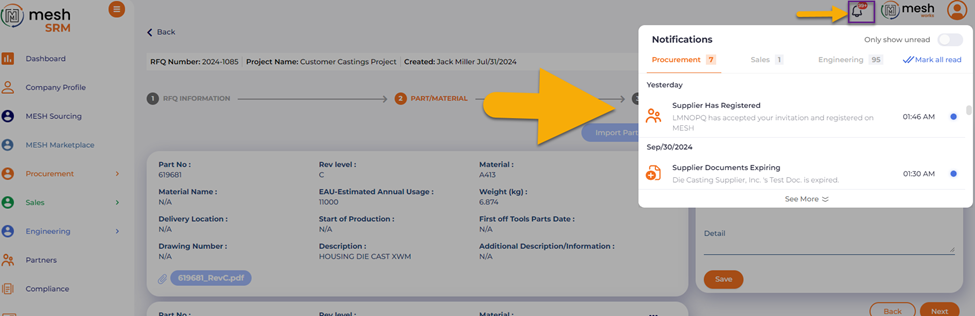
 Alert Boards/Notifications Board-> moved to the top right of the screen
The notification board located on the dashboard has now been relocated to the upper right-hand corner, under the bell icon:
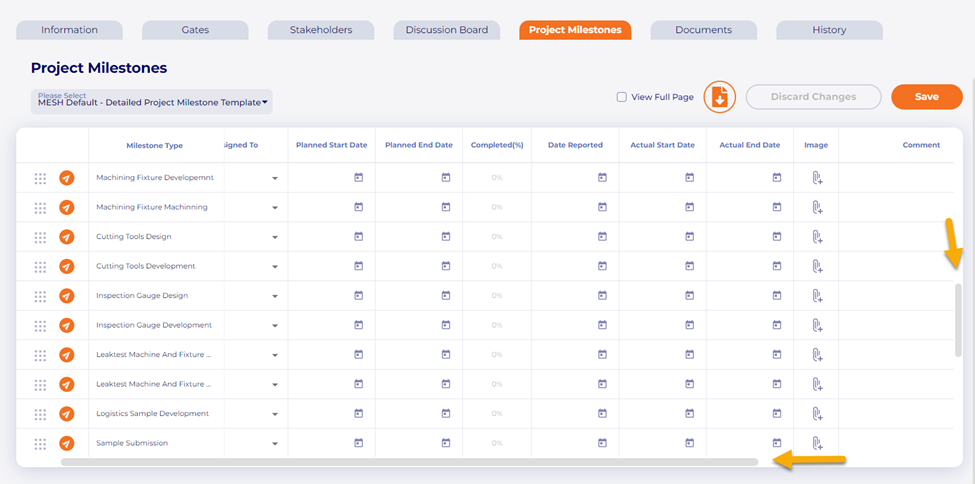
 APQP milestones-> more friendly scroll bar to navigate the milestone list.
 Marketplace-> Approved supplier NDAs saved in your My Suppliers listing
When users create bids that require NDAs from participating suppliers, each supplier who has their NDA approved will be added to the user’s My Suppliers list, and the NDA will be stored within their profile.
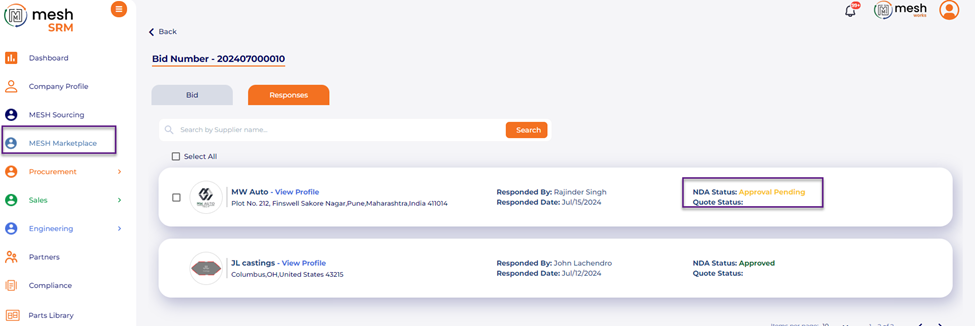
The project here requires an NDA, and this supplier has submitted one for approval:
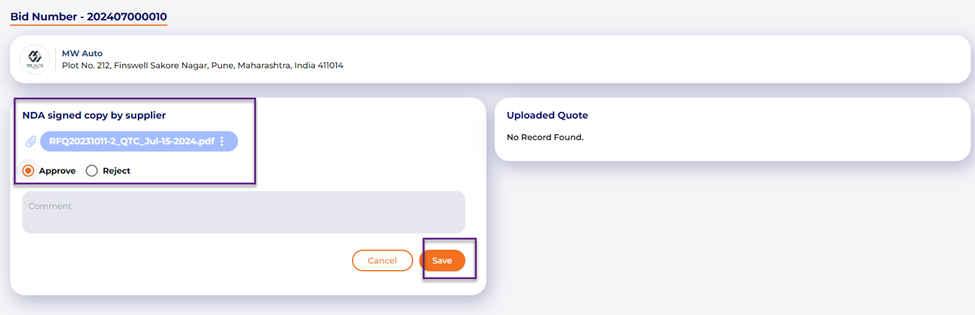
 The user then approves the NDA
 And after it is approved, the supplier is part of the user’s My Suppliers list, and the NDA is stored in the My Supplier profile.
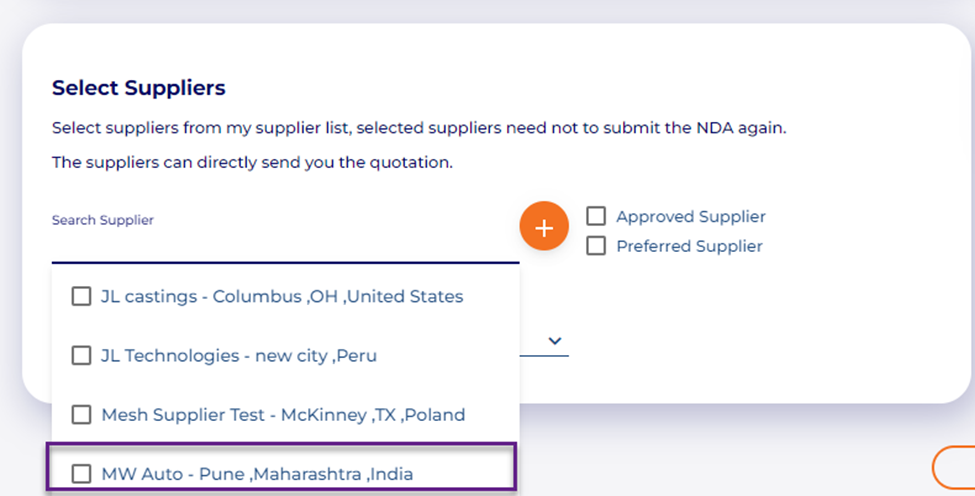
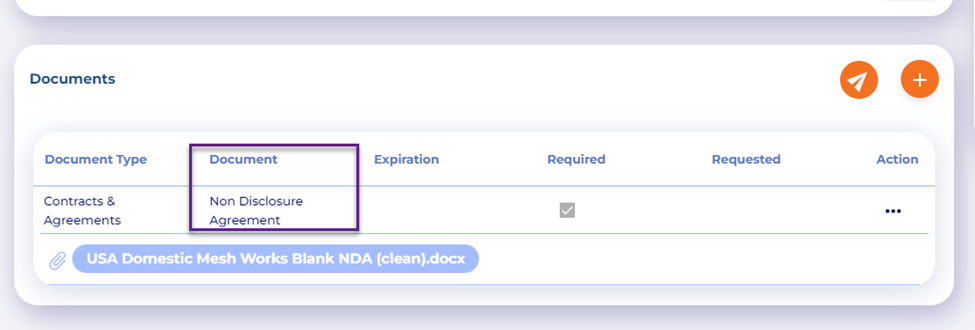 Now for every new bid in the future, the user can invite this and all suppliers with approved NDAs to bid, and they will not have to submit a new signed NDA again:
 Marketplace-> changes to how suppliers from MESH are selected to be notified.
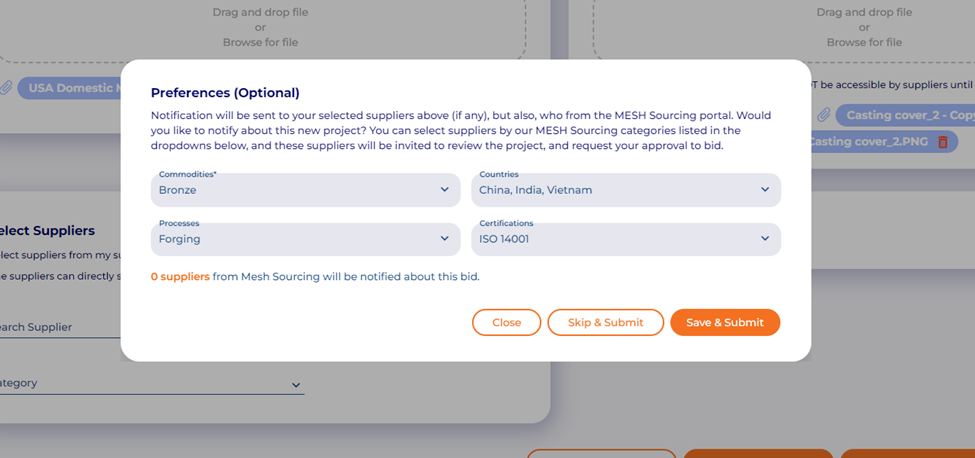
Before submitting or opening a new bid in Marketplace users will be presented with a pop up asking which of our suppliers in the MESH Sourcing database they would like to notify about the new project. Users can browse commodities, processes, countries, and certification types to narrow the list, and the screen will let you know how many suppliers this notification is going out to:
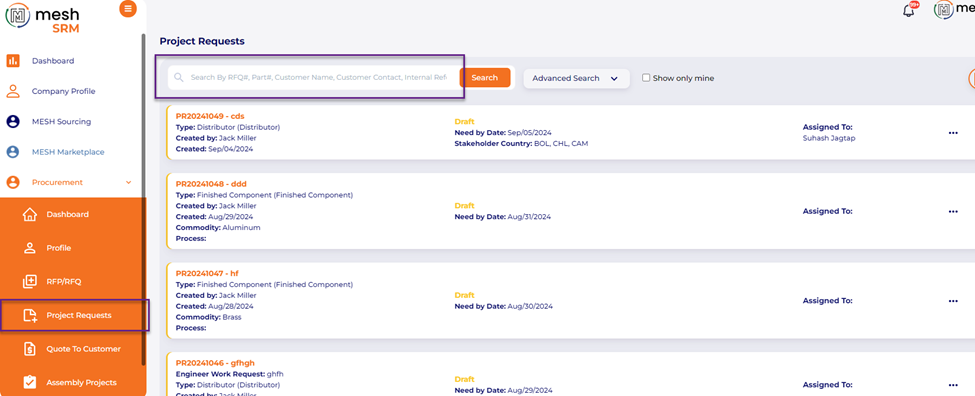
 Project request list page-> Added smart search function
On the project request listing page, we made our search bar smarter, allowing users to search their projects based on a number of factors like part numbers, customer names, internal references, and more:
 Getting Start page for new users
New users, when they log in for the first time will be presented with a getting started popup asking them how they would like to begin using MESH:
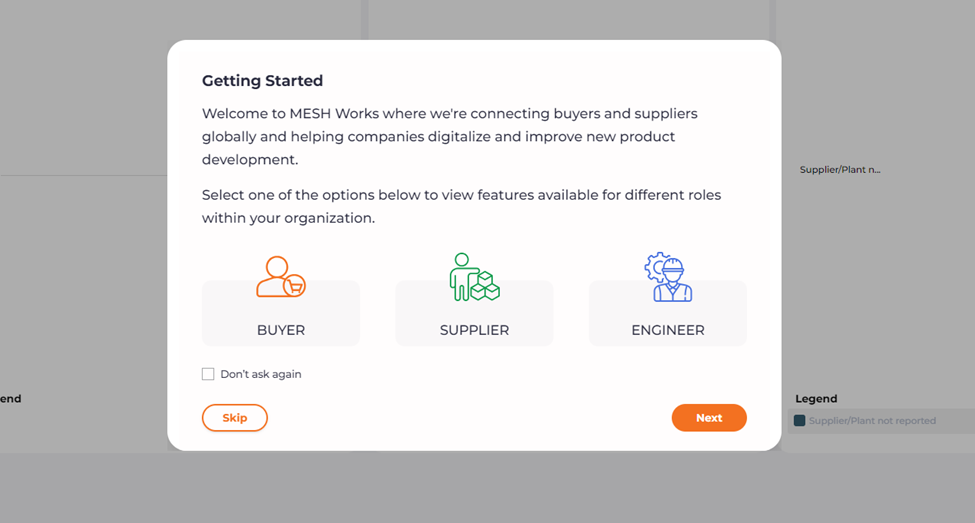 Once they select one of the options, the user will be directed to the getting started page in the Resource Library, where all the modules are listed with brief explanations as to what they do. Users can navigate directly to where they want to go from here by selecting one of the submodule options in the list.
This page can be found under the Resource Library-> Getting Started tab
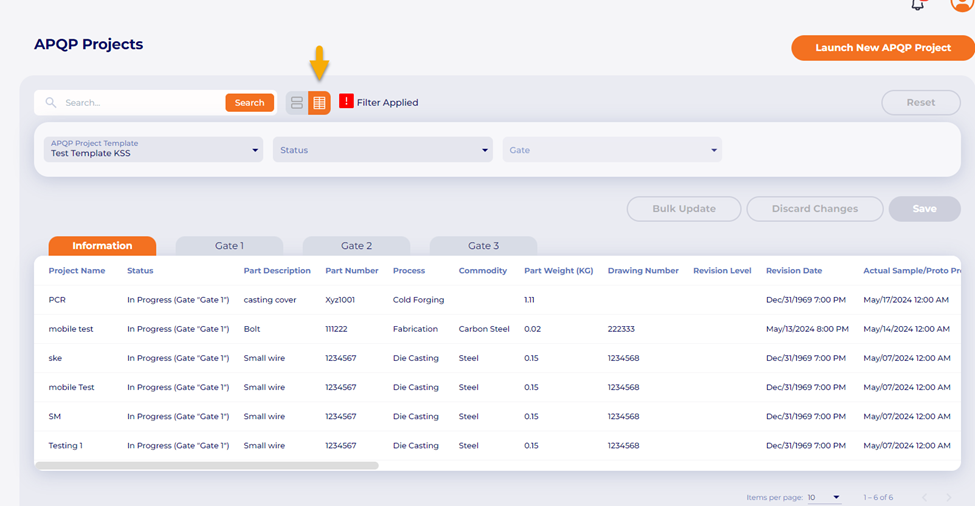
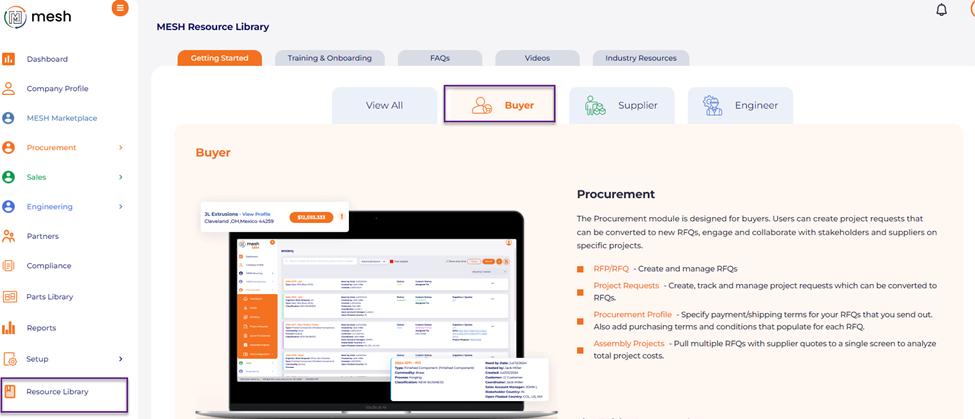 APQP list page-> added tabular view with editable fields within each gate
We have introduced a new more productive view on the APQP project listing page. When selecting the table view, users can now view more projects in a tabular format on the same screen:
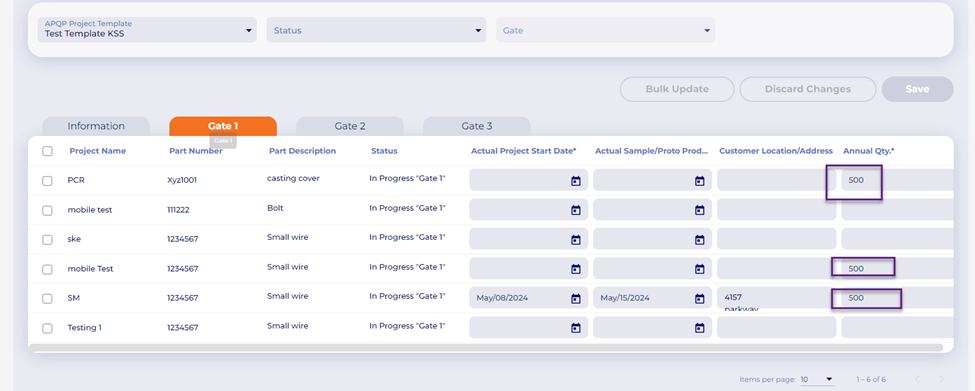
 Users can also select gates and see all the fields for those gates on each project, and update the data in those fields on the same page, without having to open any projects:
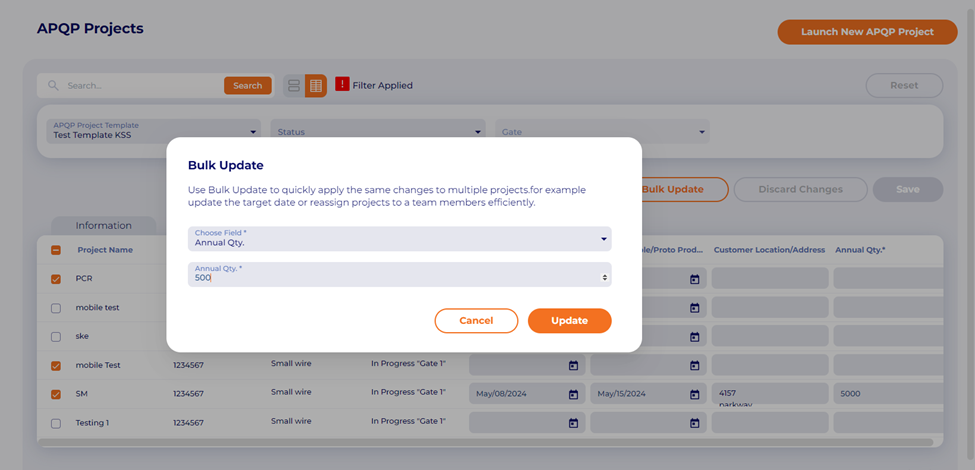
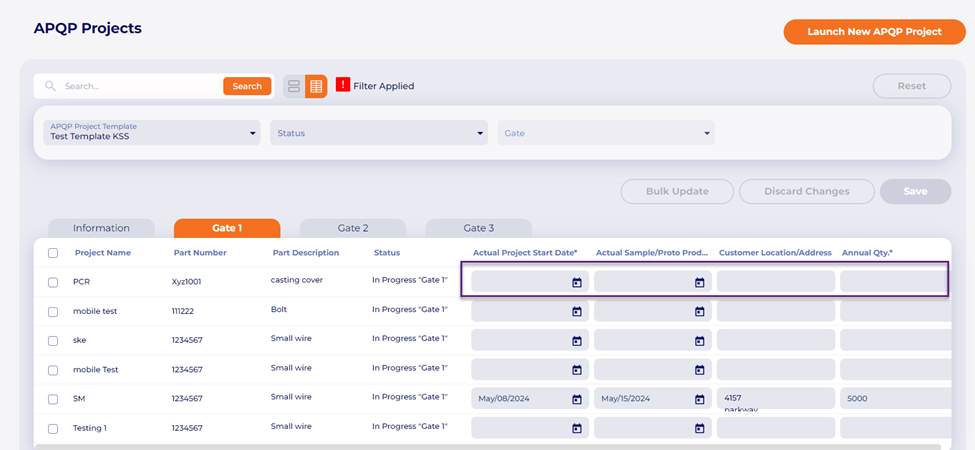 We also added a “bulk Update” button to allow users to apply a value to a data field across multiple projects at the same time, instead of having to enter it individually for each project.
User selects the projects in the check boxes to the left side of the screen, then presses the Bulk Update button. They choose the field to be updated, enter the value desired, and select Update. Once this is done the value for that field in each project will be populated. Don’t forget to save the screen before leaving.
 Mobile App
Project Request- Allow users to add new customers from the project screen
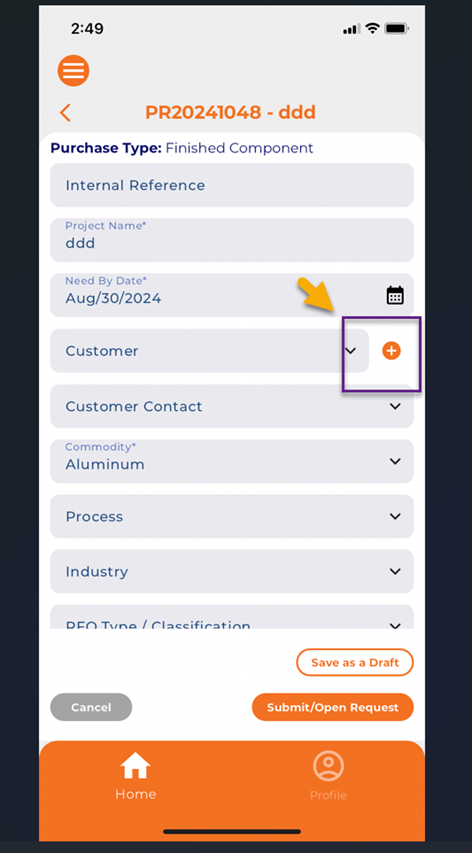
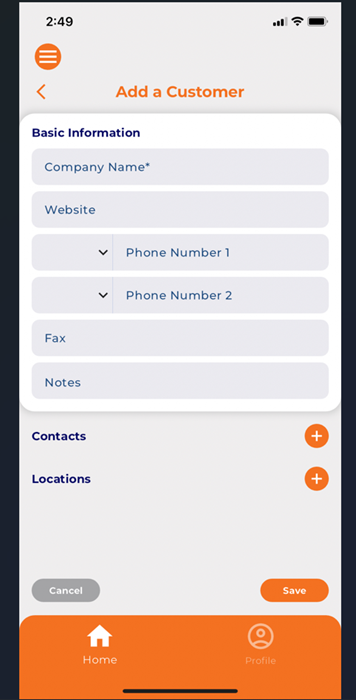
In mobile, when a user is creating a new project request, and needs to select a customer name from the dropdown, the user can now add a new customer company from the screen instead of navigating to the partners screen in the portal.
Select the “+” button next to customer:
 Complete the details on the screen, and select save:
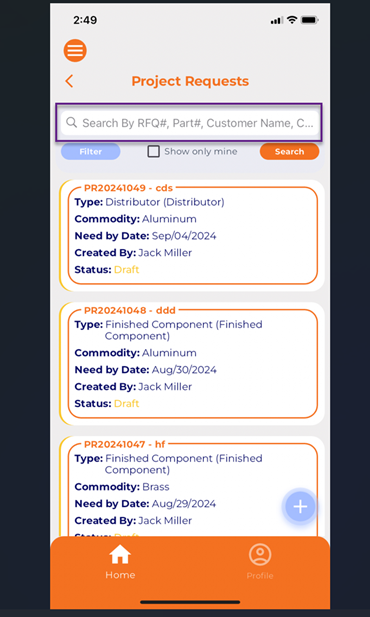
 Project Request-> added smart search to the project request list page
The project request list page search bar can now search by a wider range of criteria like part number, customer name, internal reference, etc: